Jump Links
-
DirectX is probably already updated
-
How to check the current DirectX version
-
Get the latest DirectX version on Windows 11
-
Is there a standalone DirectX installer or updater?
-
What to do if there’s no DirectX update
- Windows 11 auto-updates DirectX via Windows Update—you’re likely already on the latest version.
- To force an update, open Windows Update in the Windows 11 Settings app and click “Check for Updates.” Install any available DirectX updates.
- There is no standalone DirectX 12 installer nor “DirectX 13” upgrade. Always use Windows Update.
Using the latest DirectX version ensures you can run the newest games on your PC. It also enhances the multimedia-watching experience on your computer. While updates to DirectX on your Windows 11 machine are usually automated, we’ll show you how to force an update.
DirectX is probably already updated
First, you should be aware that by default on Windows 11, all important updates to DirectX and other critical components happen automatically. So long as your PC is connected to the internet, and unless you’ve paused automatic updates, your system will receive updates to DirectX as they become available. That means you likely already have the latest version of DirectX.
As of November 2025, the latest DirectX version is 12. Earlier versions include DirectX 11, 10, 9, and 8, but Windows 11 has always come with DirectX 12 preinstalled.
While the release of DirectX 13 is probably on the horizon, there are no legitimate releases of DirectX 13 out there as of November 2025. Additionally, all updates happen through the Windows Update interface. Any website you find claiming to provide an upgrade to DirectX 13 is fake and probably malicious.
How to check the current DirectX version
If you’d like to see what DirectX version your system is currently running, use a command in the Run dialog box and you’ll see the version number.
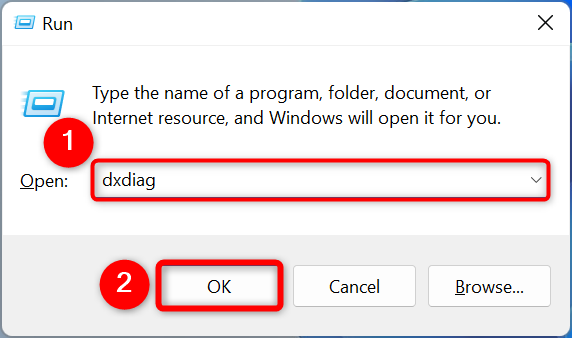
To do that, first, open the Run dialog box by pressing Windows+R. Then, type the following in the box and press Enter (or click “OK.”)
dxdiag
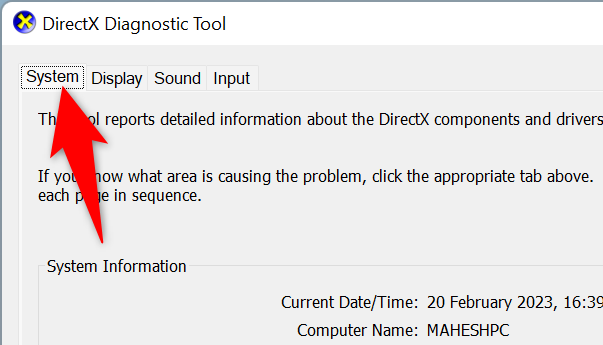
You’ll see a “DirectX Diagnostic Tool” window. Here, at the top, select the “System” tab.
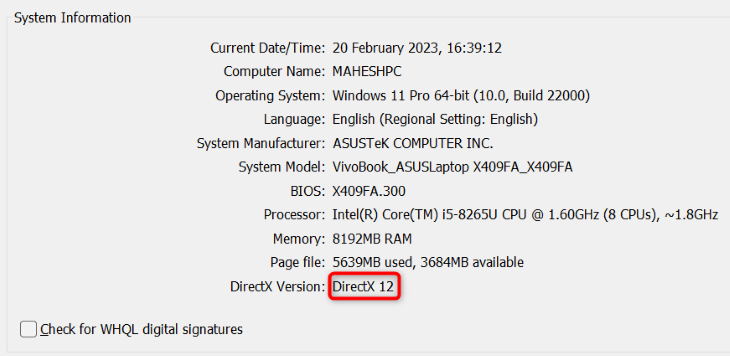
In the “System” tab, you’ll see a “System Information” section. Here, next to “DirectX Version,” you’ll see the current version installed on your PC.
Get the latest DirectX version on Windows 11
All DirectX updates come to your PC through Windows Update—there’s no way to download a DirectX update outside of it. We’ll check for updates there.
To start, open the Settings app by pressing Windows+i. Then, in the left sidebar, select “Windows Update.”
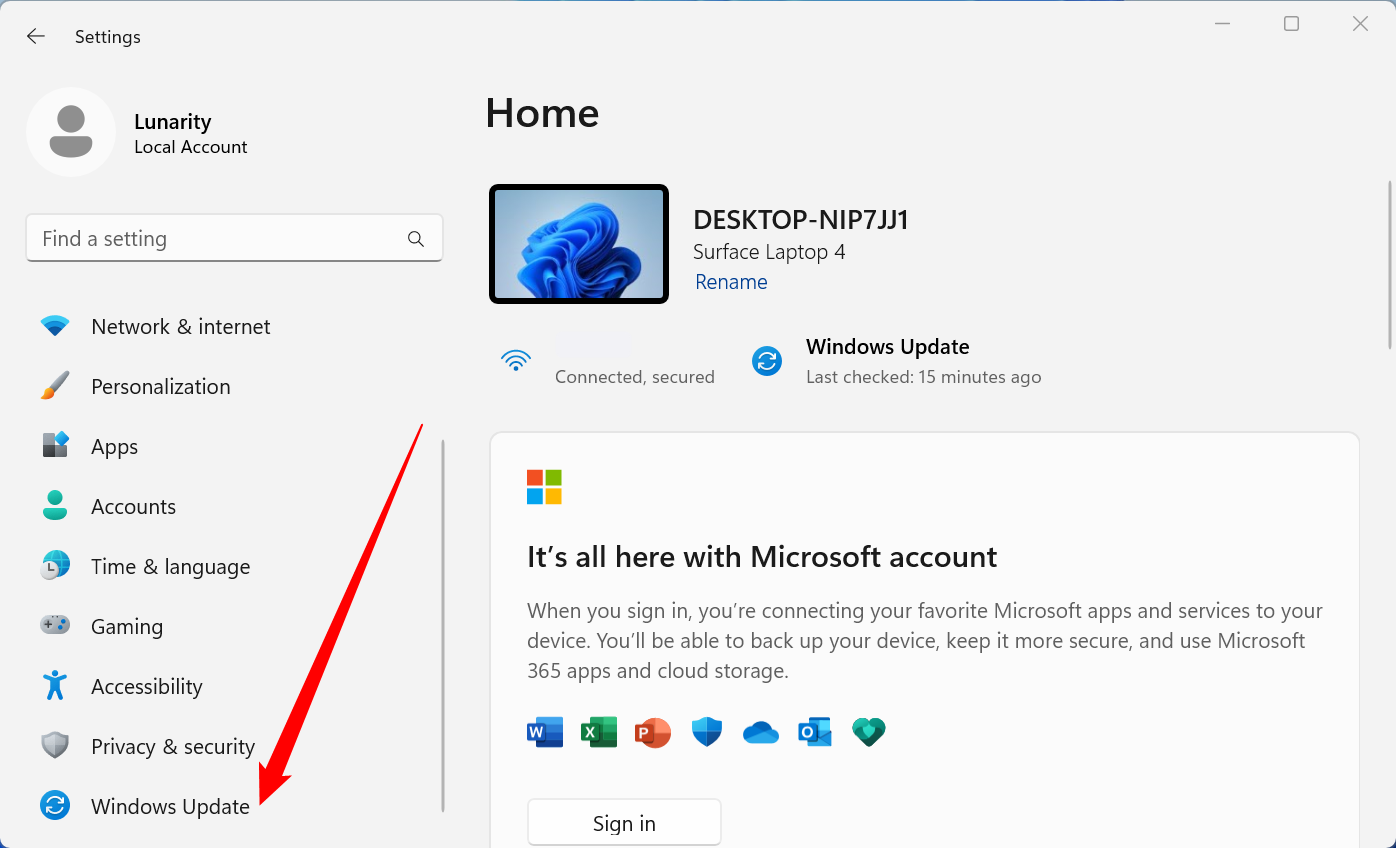
On the right pane, at the top, click “Check for Updates.”
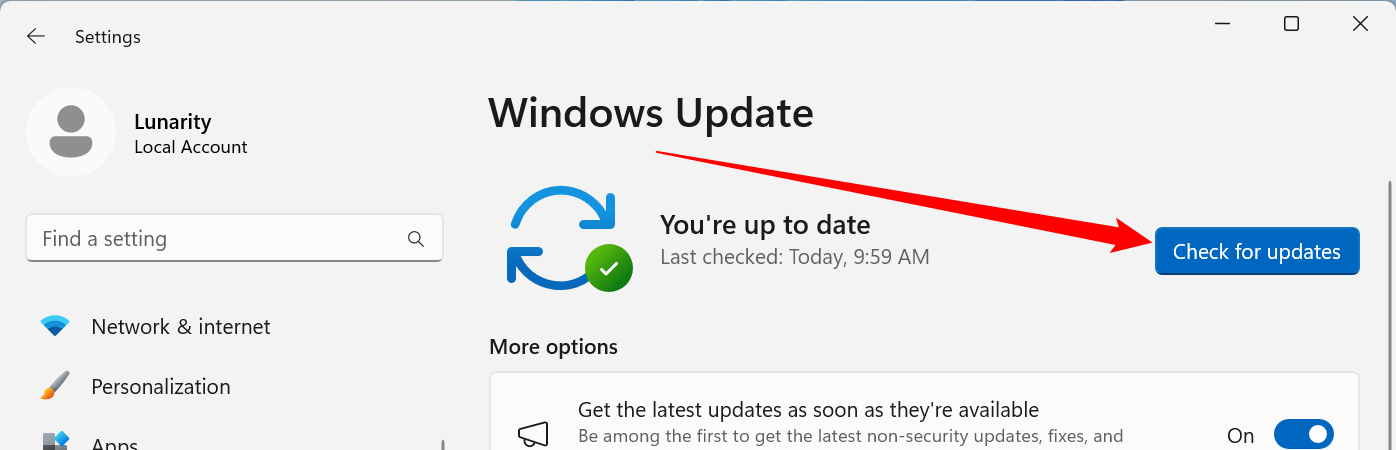
Download and install the available Windows updates. This will also update your DirectX version if a newer version is available.
Once the update is finished, you’ll be running the most recent version of DirectX on your computer.
Is there a standalone DirectX installer or updater?
No, not anymore. Older versions of DirectX had manual installers that you could download from Microsoft, however no such utility exists for DirectX 12. The only way to update modern versions of DirectX is with Windows Update.
What to do if there’s no DirectX update
If you don’t see a DirectX update in Windows Update, that means a newer version of the tool is not available. In case you’re looking to resolve your gaming, graphics, or other multimedia-related issues on your PC, like lag or visual artifacts, try updating your graphics card drivers. That helps resolve most graphics-related issues with your PC.
If that doesn’t work, you may also try using Vulkan instead of DirectX if the game supports it—it can sometimes improve performance!