I’ve gone through five generations of Windows OS, and even with all the improvements, it tends to go haywire sometimes. While I don’t care about small bugs and delays, I cannot ignore glaring issues that stop me from using the OS features or running my favorite apps. These two aspects are non-negotiable, and when one of them doesn’t work as intended, a clean install (reinstalling the OS and wiping all the data and apps on the system drive) comes to mind. You might share the same idea whenever your Windows OS breaks because it was the only solution back then.
However, attempting a clean install involves backing up keys and folders, and it takes 2–3 hours to recreate your personal system. I don’t rush to reinstall Windows (clean install) now because there are ample recovery and troubleshooting tools available natively. Instead, I try to use them and check if the problem goes away before wiping the slate clean. Let’s look at all the possible options you have before a clean install becomes necessary.
Rollback system update
Begone buggy releases
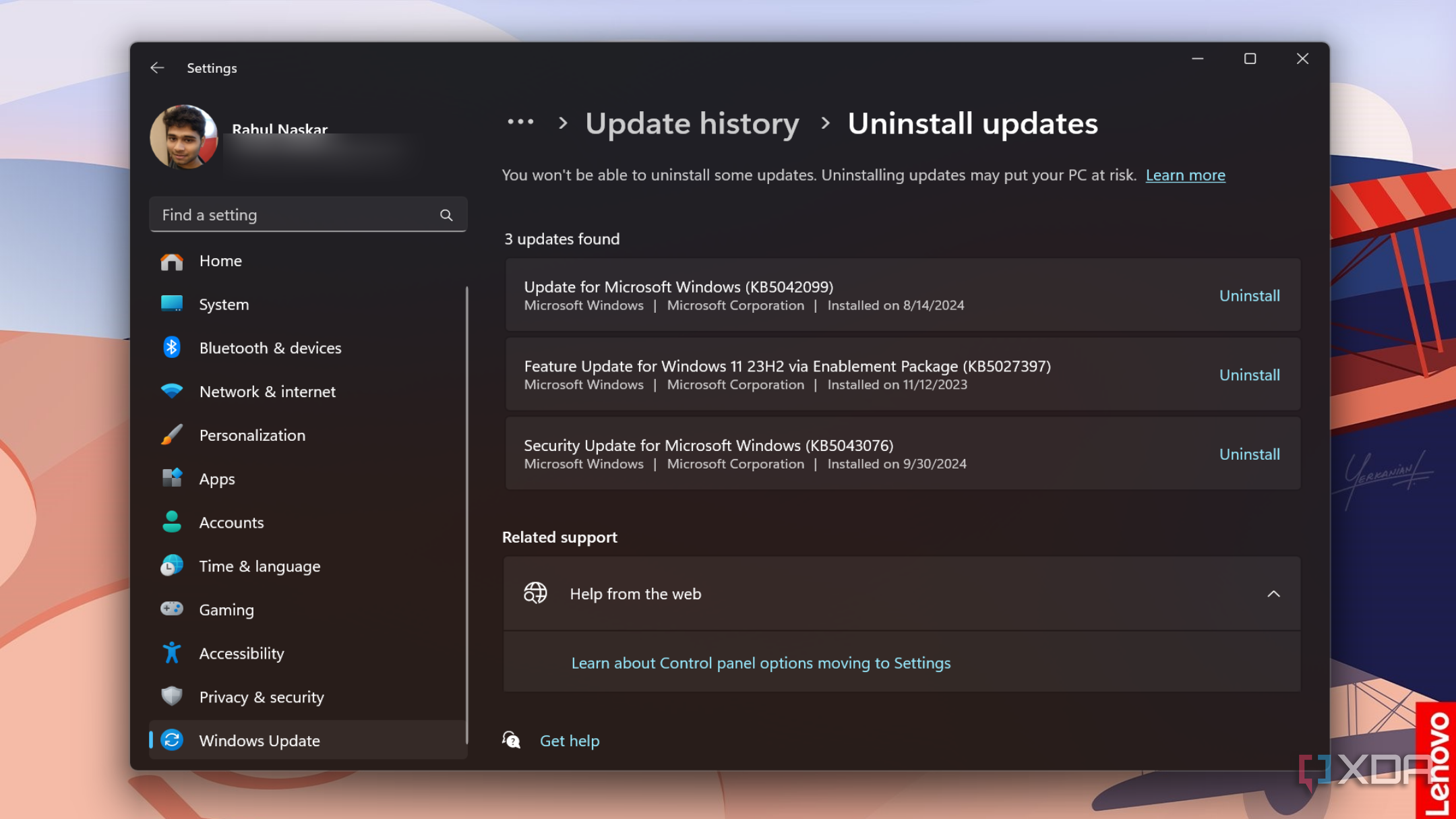
It’s the most trivial troubleshooting method because Windows updates tend to break things. It’s a reputation Microsoft built over the years with botched updates, and you are better off ruling out this possibility first. You can do so via the update settings page, and the rollback sometimes requires a restart.
It is useful because it has no impact on the system and is the quickest of all the methods. Even if you later realize that the update wasn’t causing any issues, you can reinstall it from the Settings app. No harm done to your files or settings.
Trying system troubleshooters, CLI tools, and Safe mode
Using native tools

Microsoft retired many legacy troubleshooters to make way for the Get Help app. It’s not the fastest, sleekest tool for you, and it takes a while to load and work. But if you have a hardware-related problem, giving it a try doesn’t hurt at all.
I have used it to fix some network-related problems, but have been unsuccessful with others. So, you can give it a go if removing updates didn’t do the magic you were expecting. I hope Microsoft brings back legacy troubleshooters that actually work more than this unreliable tool.
Safe mode is also a good method to check if any driver or background process is misbehaving with the system. It loads the system with the bare minimum of drivers and services and is an invaluable tool for weeding out software issues. Also, do an SFC and DISM scan to fix inherent problems with the system files and components.
After using them, ensure to enable Quick machine recovery, which is an advanced form of the startup repair tool. It can save you when your PC cannot boot to the desktop and check the servers for a solution.
System Restore
Time travel to a working state
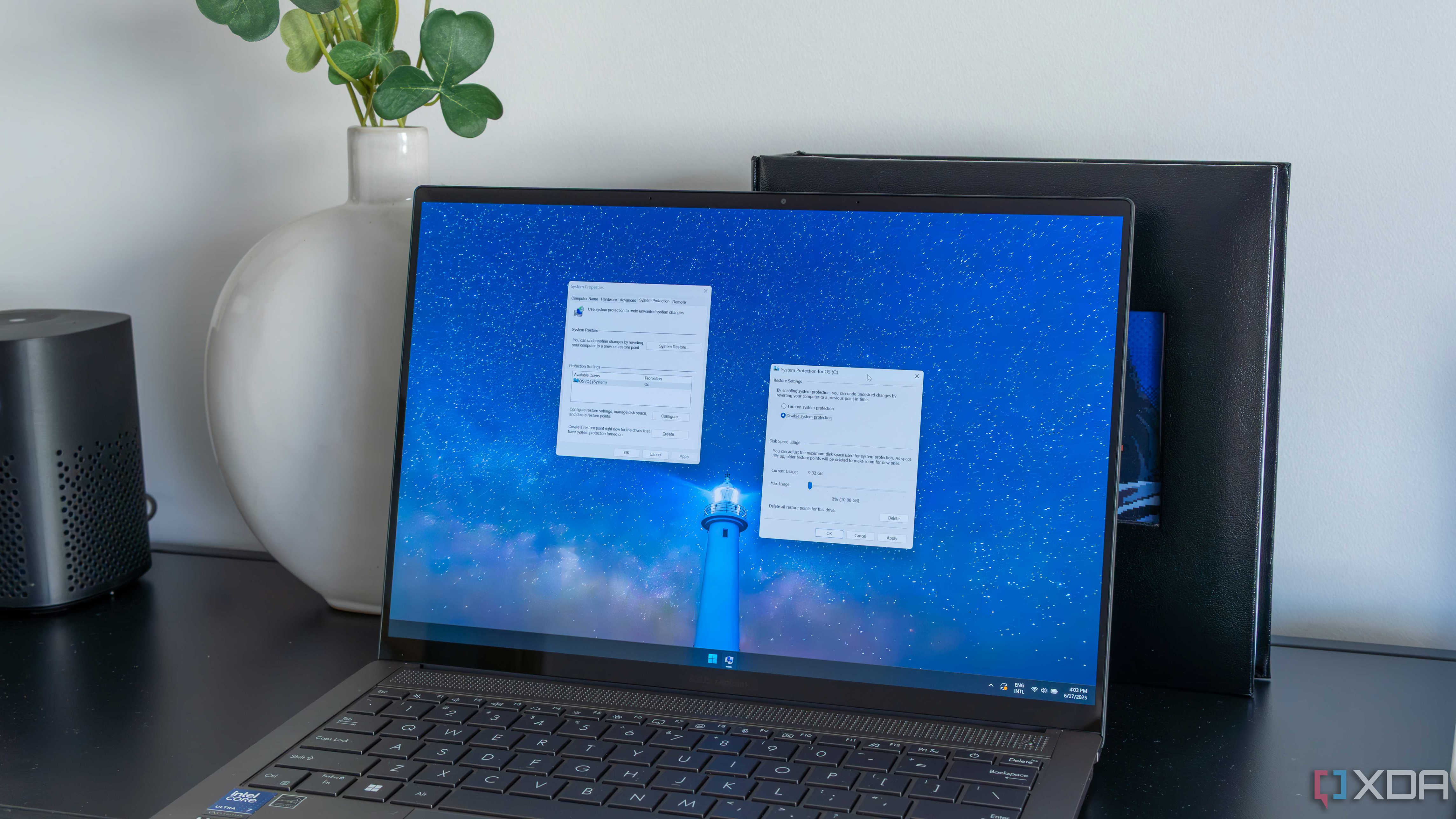
Enabling system restore is a no-brainer because it can save you from so many problems. I’ve had instances where using a tweaking tool or changing a registry key or value resulted in a non-bootable system. Sometimes a key function stops working due to it, and I relied on the auto-created system restore point to save myself.
It’s been the most valuable tool since my Windows 7 days, when there were very few recovery-related features in the OS. Windows creates a system restore point whenever you install new software and keeps deleting old restore points after 60 days. I can also use it as a quick rollback tool after installing too much stuff in a short span.
You can even access system restore points from the WinRE page and apply them if the system doesn’t boot at all. It’s the easiest to use utility of all time, and even Linux has an alternative for it called Timeshift.
Reinstall Windows using Windows Update
The least complicated solution
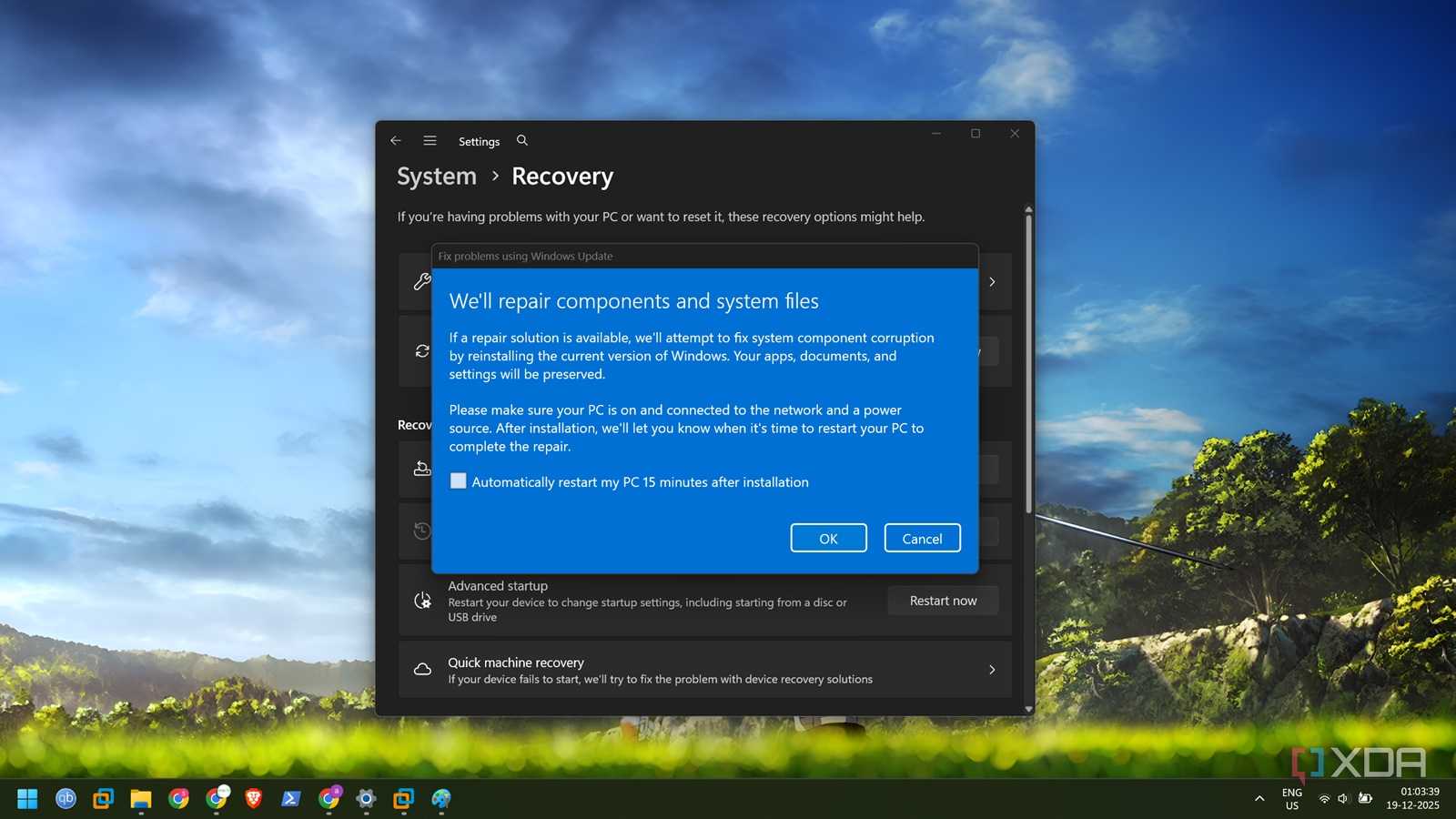
It’s a recent addition to Windows 11’s recovery toolkit and, in my opinion, an underappreciated tool. When you decide to use this option, Windows tries to repair system components and core files. It then downloads an update of the last working version and tries to install it.
If the attempt is unsuccessful, it’ll reinstall the operating system. Note that it’s different from resetting your PC because this action only impacts the operating system files while preserving your settings, preferences, and installed software. You might have to wait for some time before you can use the system.
Reset your PC
The last arrow in the quiver
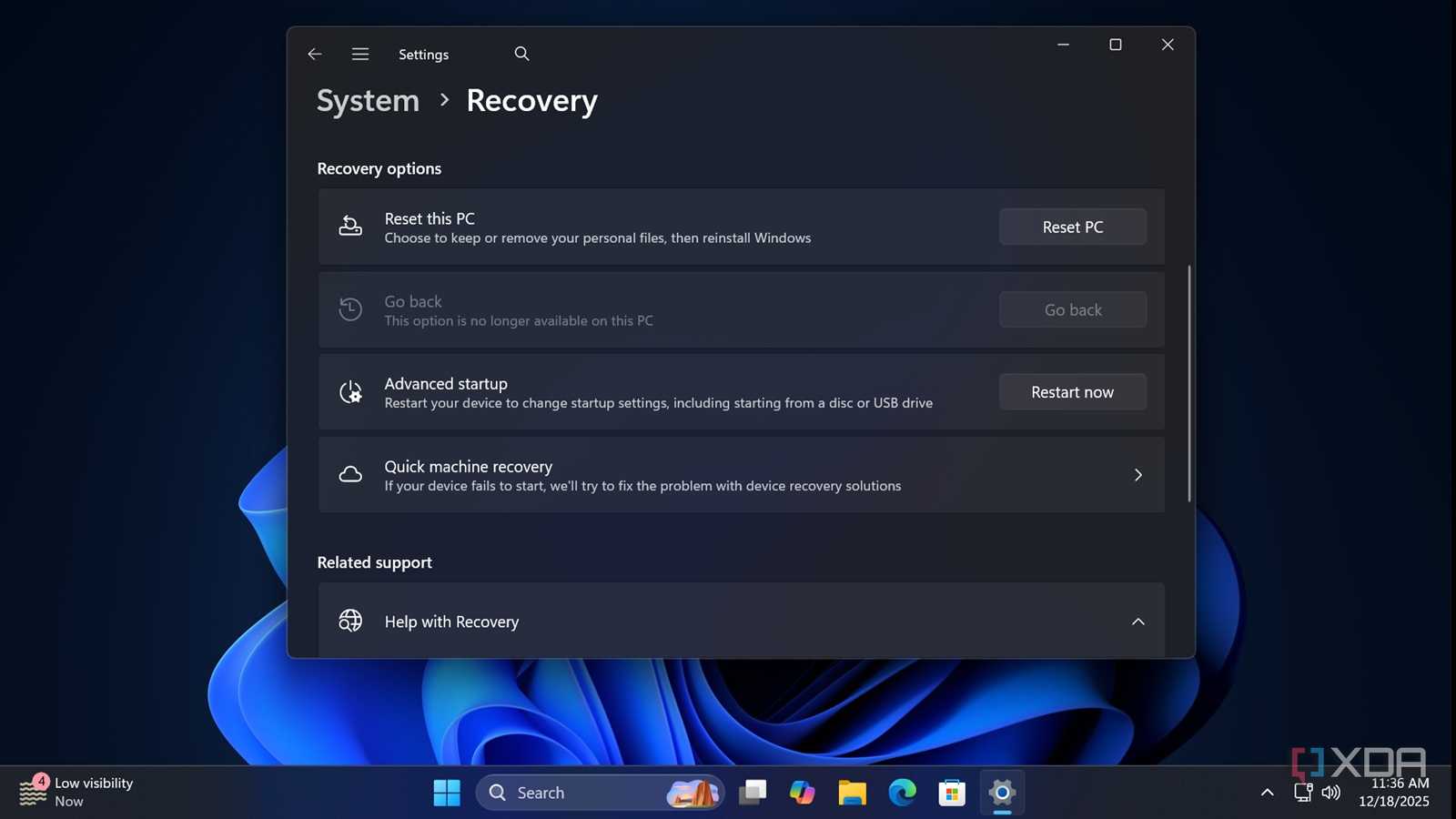
It’s a last resort before wiping the slate clean. Microsoft introduced this option with Windows 8, and it resolved one huge problem. Creating bootable USB images wasn’t a popular method back then, and burning ISO to DVDs was the only other choice. Resetting allowed me to reinstall the operating system without creating a bootable USB drive or DVD.
The modern reset option can help you preserve personal files, but it cannot save third-party apps. However, you can use Windows backup to save your settings and preferences and then restore them and the Microsoft Store app via the OOBE setup page.
For third-party software, you can use Winget to export a list and then import it to install multiple apps in one go. You might have to enter the BitLocker drive key while using the reset option. You can also wipe the slate clean if you don’t select the keep my files option in the reset window.
Clean install when everything else fails
Windows 11 has ample options in the recovery suite to help you fix the OS problems. A clean install should be your last resort when you want to nuke the system and remove everything from drivers to personal files on all the drives. I suggest doing a regular backup and even using Safe Mode to see if the issues occur there. Clean installation isn’t fun anymore because, despite improved SSD speeds, the OOBE page drains your energy with useless ads and forced account sign-ups.